Configuring Business Settings for Policies
Last updated: July 12, 2025
Steps to Configure Business Settings
1. Navigate to the Business Settings Page
From the Admin Dashboard, go to Business Settings
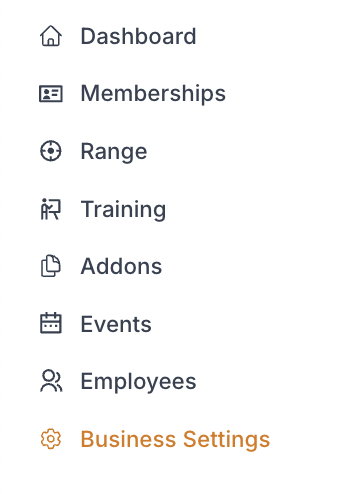
Select "Policies"

2. General Cancellation Policy
Set the overall cancellation policy for your business that will cover general terms and conditions applicable to all bookings and purchases

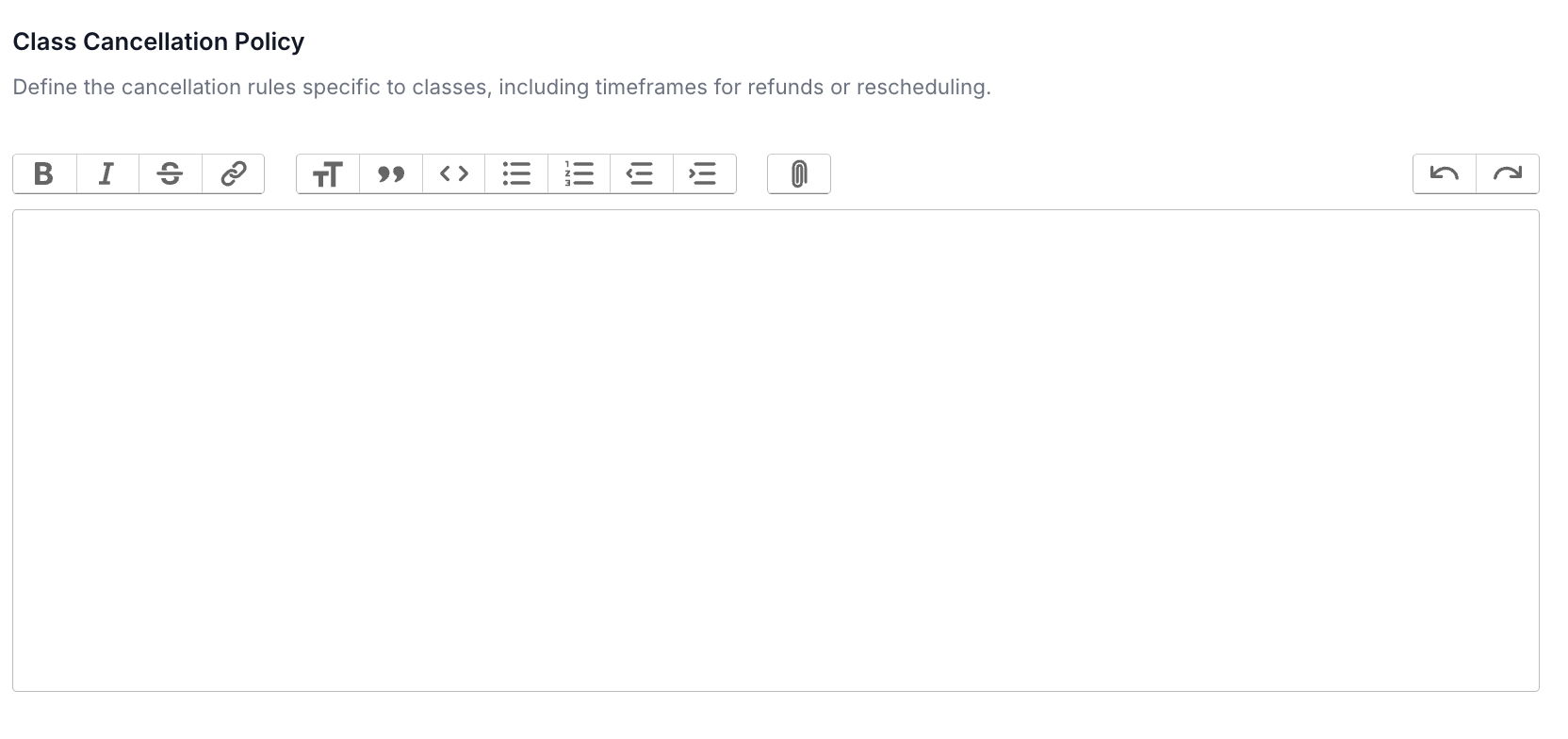
3. Class Cancellation Policy
Set the cancellation policy specific to classes, including timeframe for refunds or rescheduling
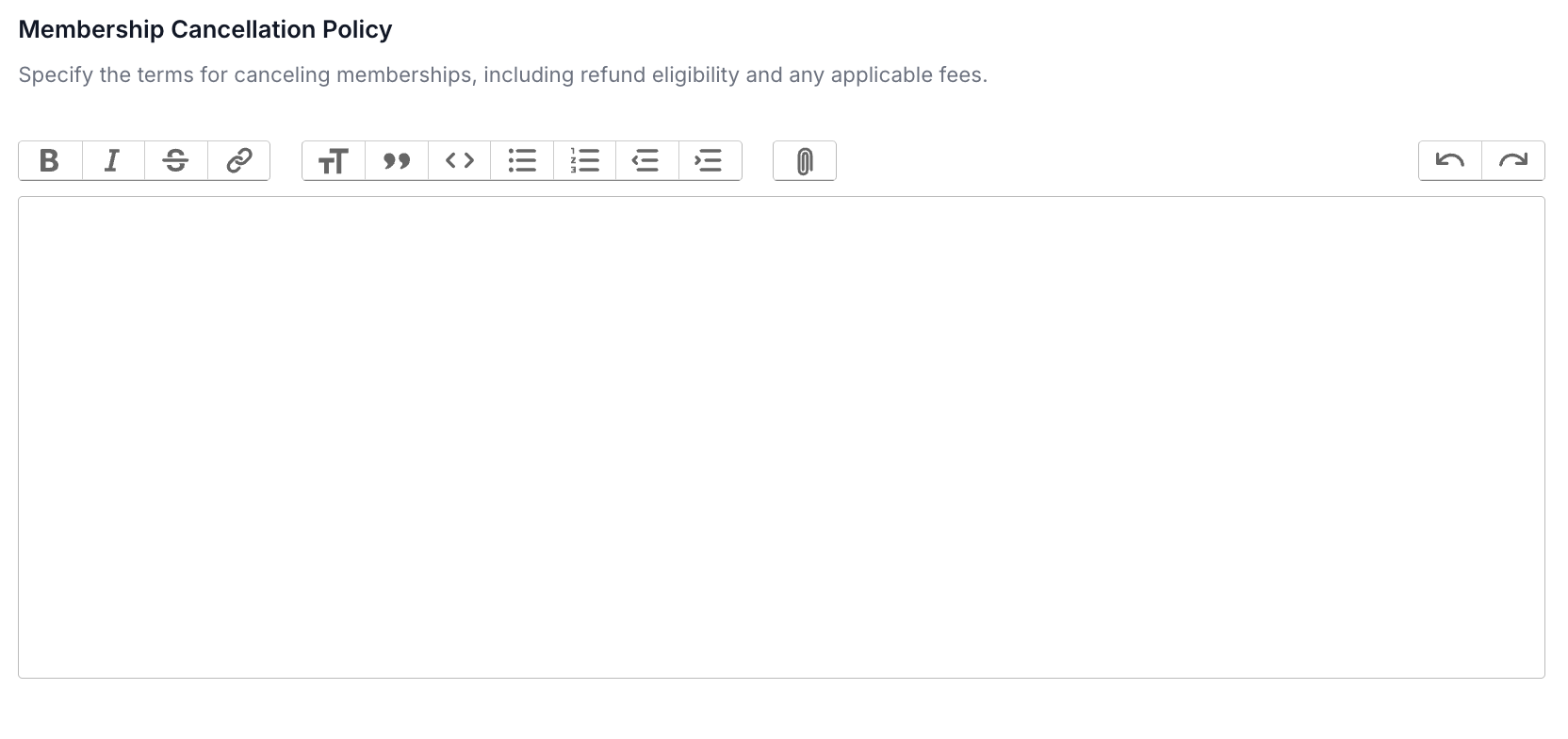
4. Membership Cancellation Policy
Specify the terms for canceling memberships including refund eligibility, applicable fees and time frames for notice of cancellation
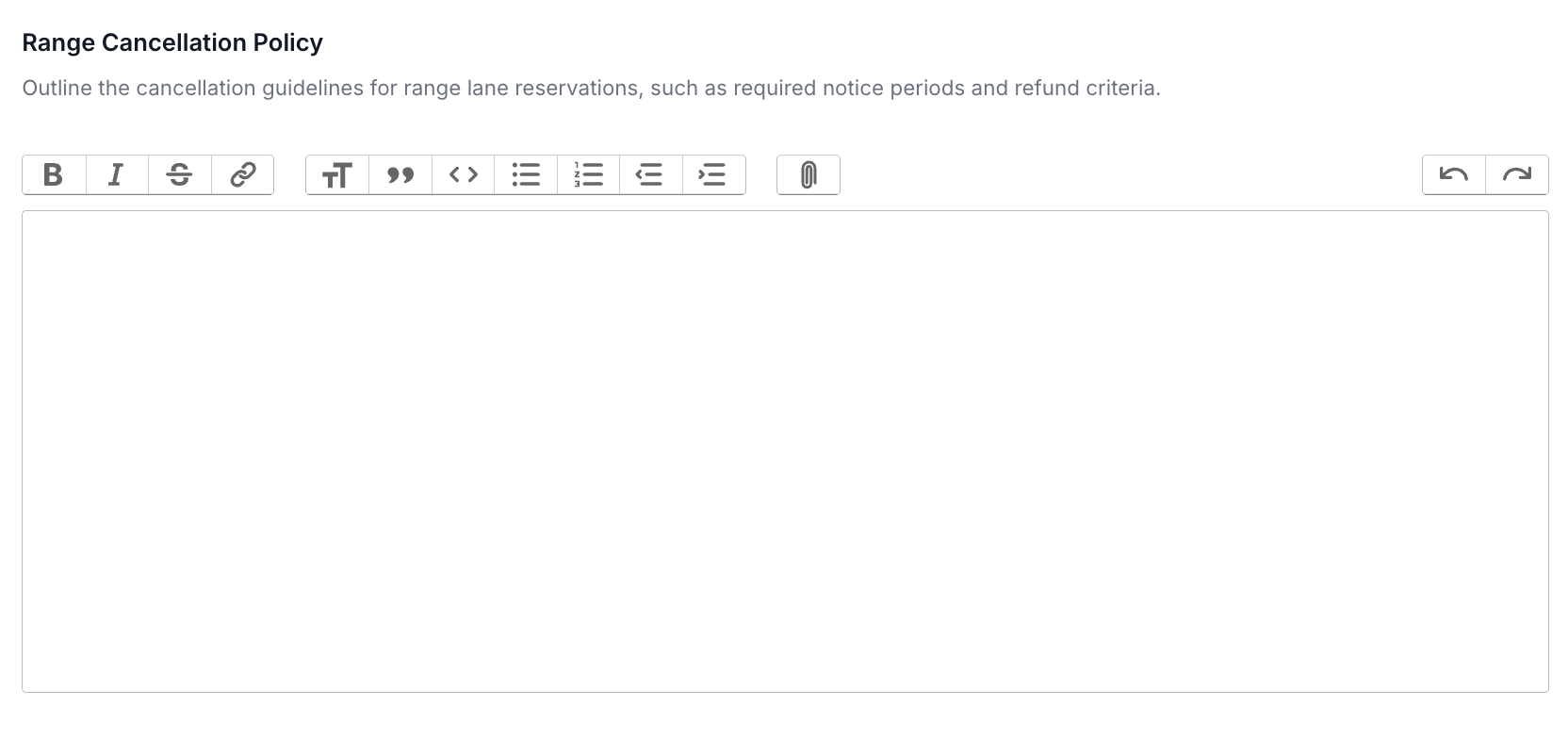
5. Class Cancellation Policy
Set the cancellation policy specific to range reservations, including timeframe for refunds or rescheduling
5. Save Changes