Configuring Business Settings for Design
Last updated: July 12, 2025
Steps to Configure Business Settings
1. Navigate to the Business Settings Page
From the Admin Dashboard, go to Business Settings
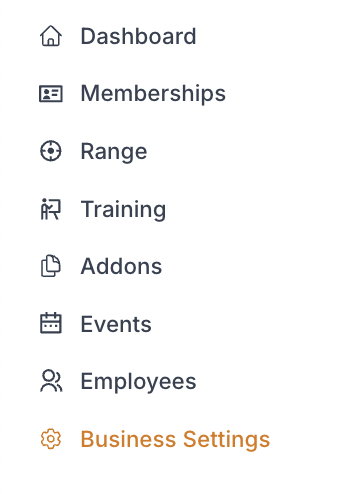
While in "Consumer UI" select Design tab

2. Customize Consumer Navigation
Check the items you would like to show in the consumer navigation page
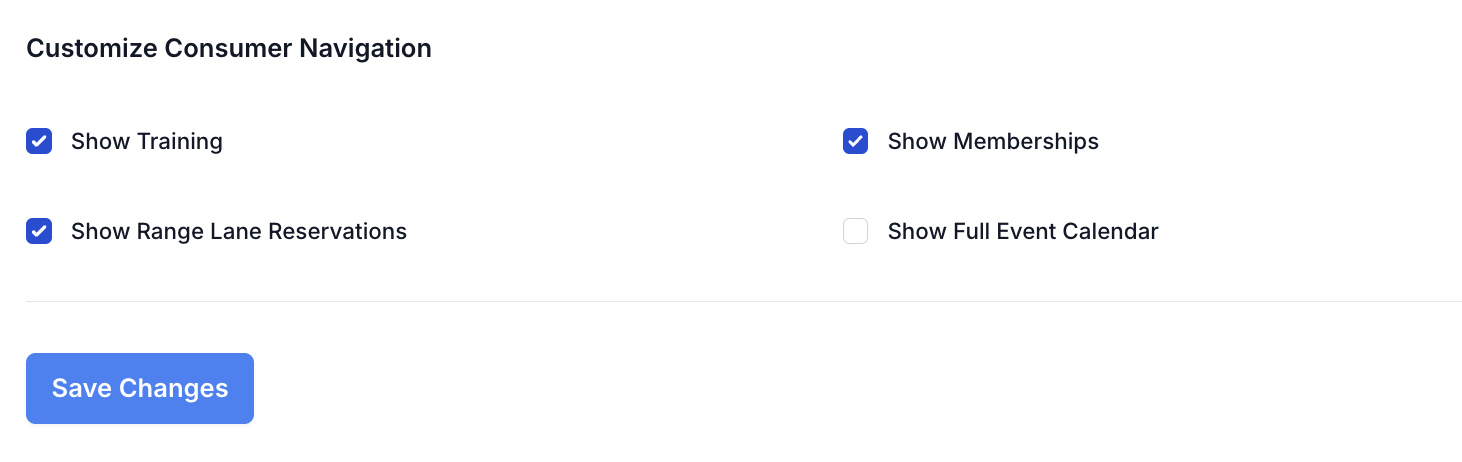
These selected items would display as follows in the consumer navigation page

3. Business Graphics
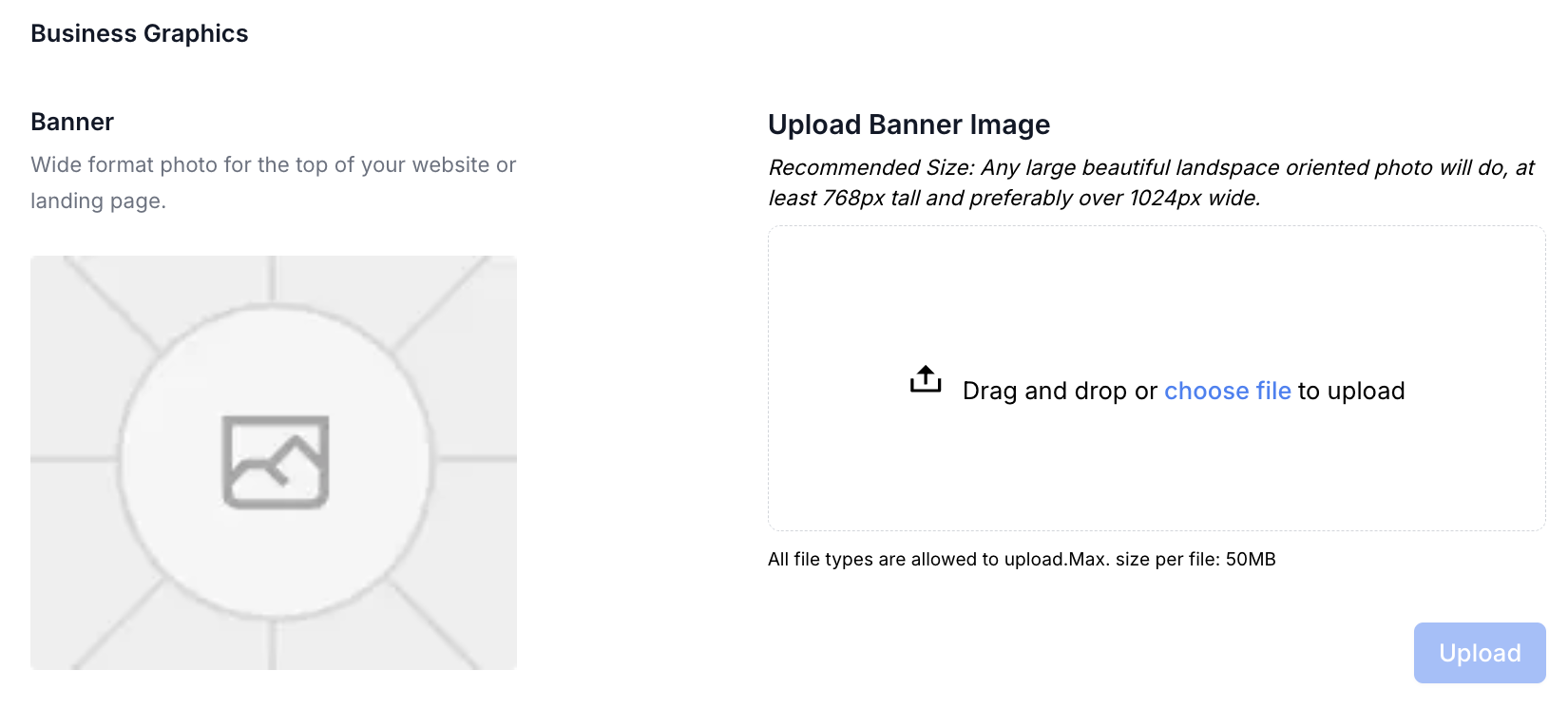
Banner: Upload a banner image for the top of your website or landing page
Recommended Size: Any large beautiful landspace oriented photo will do, at least 768px tall and preferably over 1024px wide.
Make sure to click upload
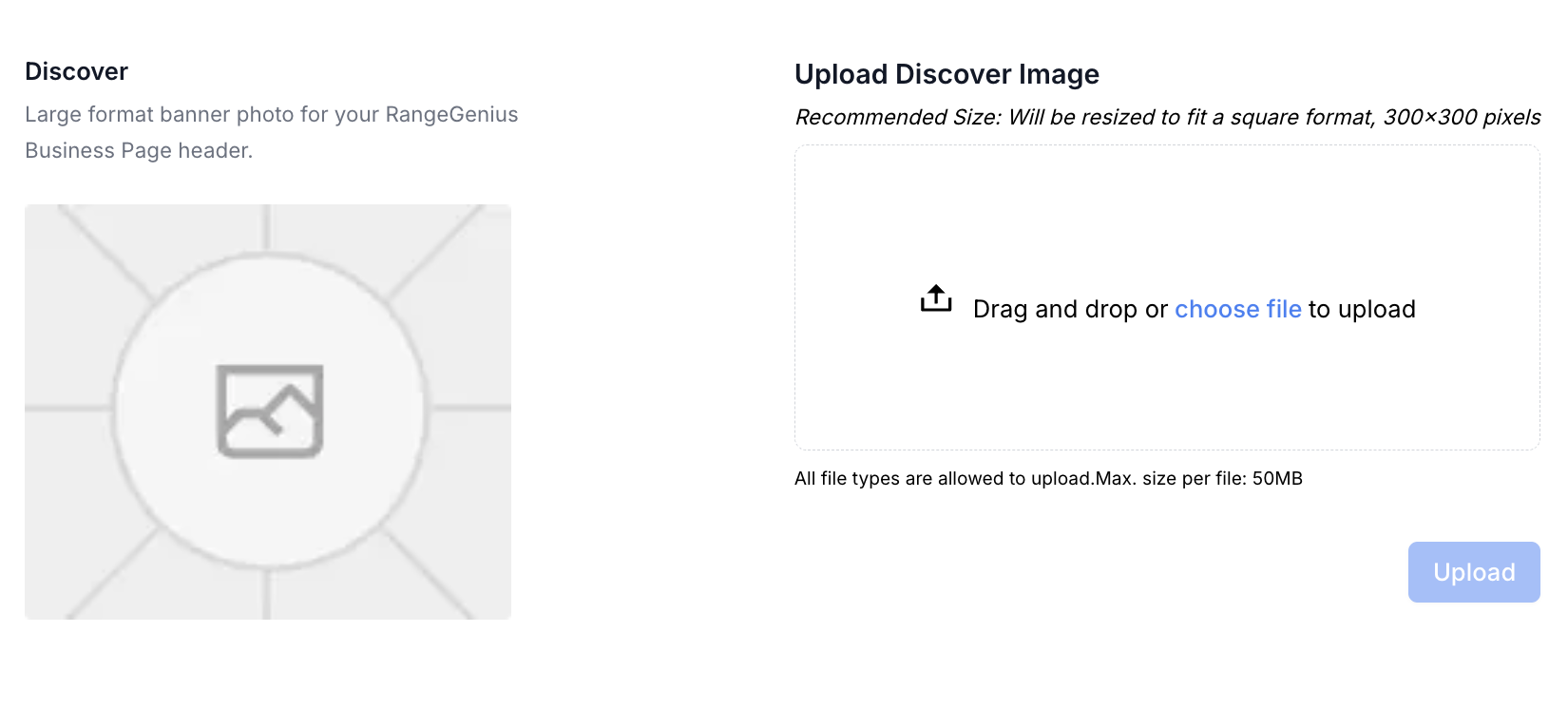
Discover: Image to show on RangeWorks Range Discover Page
Recommended Size: Will be resized to fit a square format, 300x300 pixels
Make sure to click upload
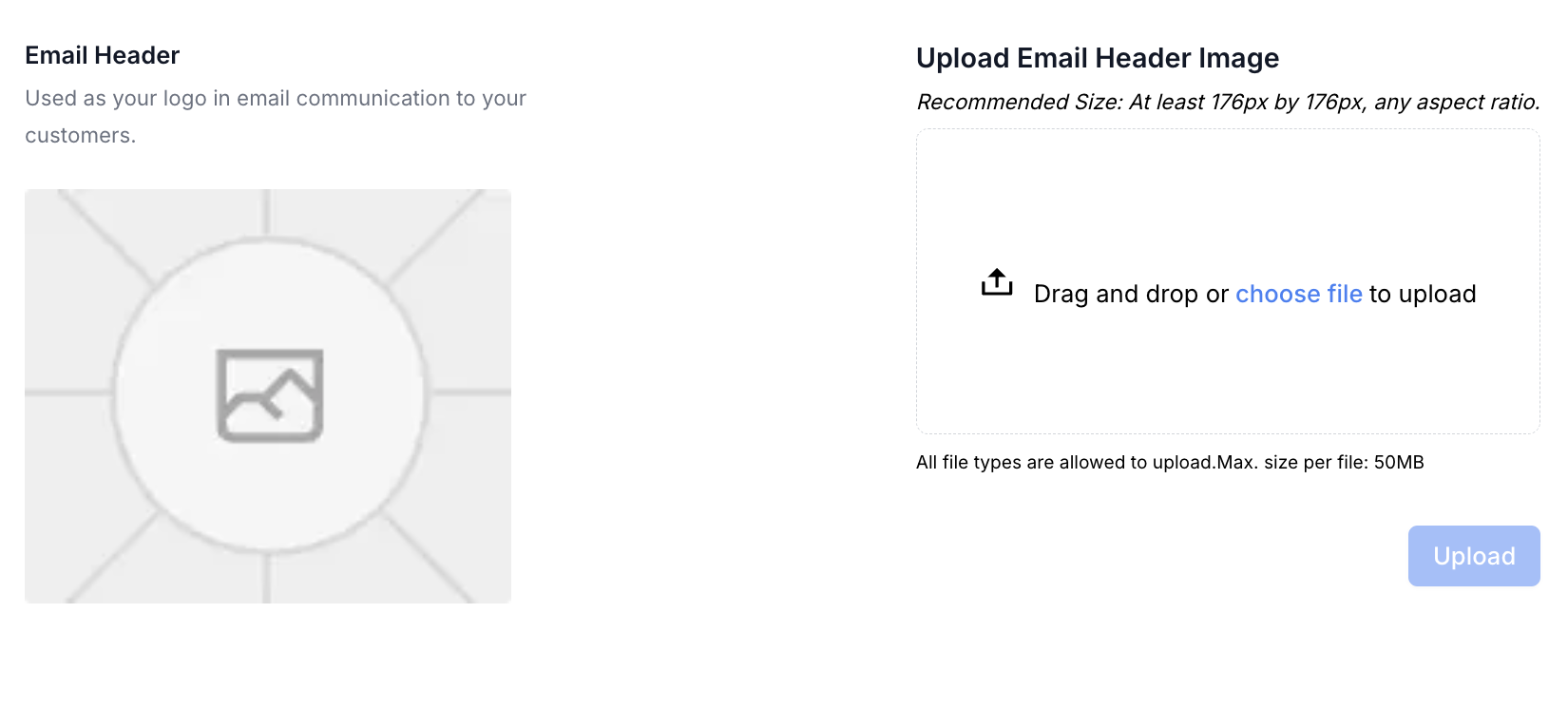
Email Header: Image used as your logo in email communication to your customers
Recommended Size: At least 176px by 176px, any aspect ratio
Make sure to click upload