Configuring Business Settings for Memberships
Last updated: July 12, 2025
Prerequisites
Before creating a class, ensure:
You are logged in as an Administrator or a user with Membership permissions.
To add Memberships to your RangeWorks services contact Support
Steps to Configure Business Settings
1. Navigate to the Business Settings Page
From the Admin Dashboard, go to Business Settings
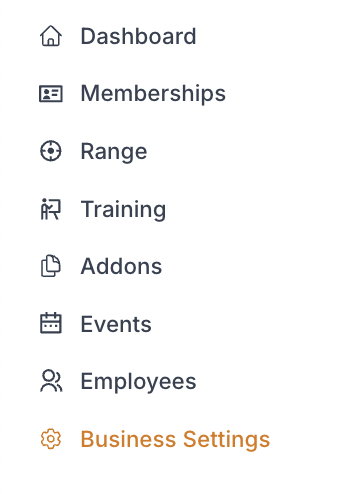
While in "Consumer UI" select Memberships tab

2. Enter Membership Order Confirmation Email Address
This email will receive alerts after every membership sale
Multiple email addresses can be added if they are separated by commas

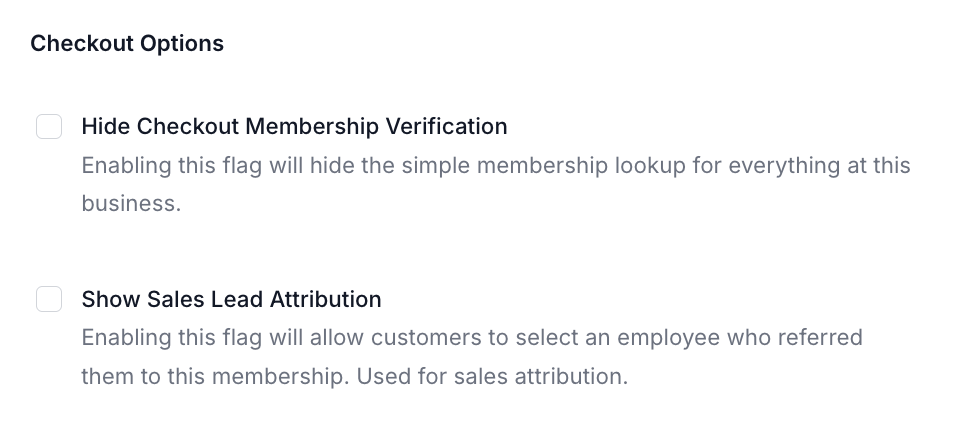
3. Select Checkout Options
Check "Hide Checkout Membership Verification" to hide the simple membership look up for everything at the business
Check "Show Sales Lead Attribution" to allow customers to select the employee who referred them to this membership
Great for tracking sales to employees
Fill out the following fields:
Field | Field Description |
Class Name | A clear name for the class (e.g., “Intro to Range Safety”) |
Description | Brief overview of what the class covers (Internal description of the class) |
Tags | Information to allow customers to filter and sort class types easier
|
Checkout Form Optional Settings | Select to enable the following at check out:
|
Discount Optional Settings | Select to :
|
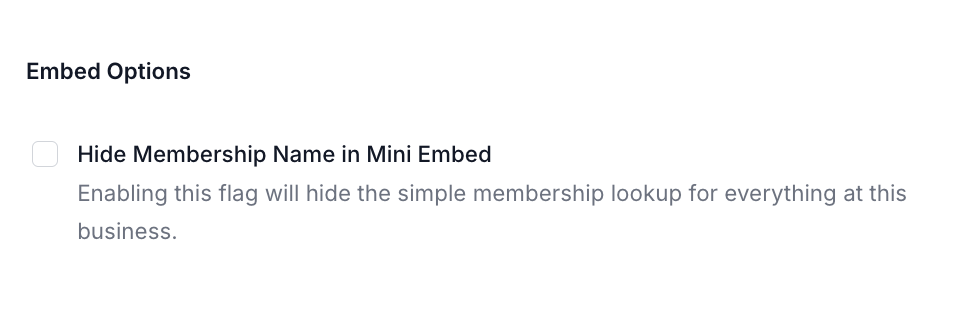
4. Embed Options
Check "Hide Membership Name in Mini Embed" to only show the price of the membership in the mini embed version
5. Save Changes
6. Display Position
Drag the memberships in the order you would like them to display
