How to Create a Class Session
Last updated: July 6, 2025
Prerequisites
Before creating a class session, ensure:
You are logged in as an Administrator or a user with Training permissions.
To add Classes to your RangeWorks services contact Support
You have the Training Class Type created
Reference: How to Create a Training Class
Steps to Create a Class Session
1. Navigate to the Training Page
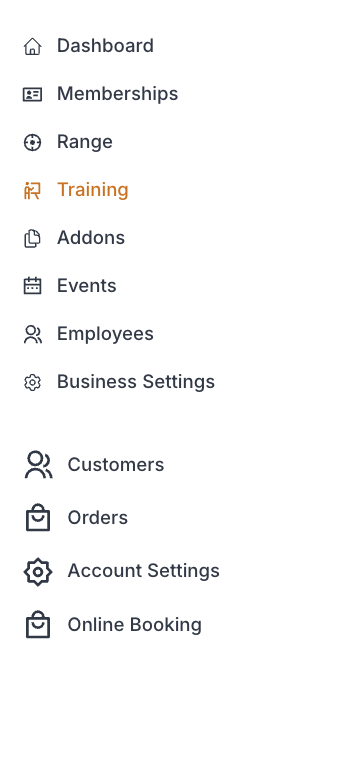
From the Admin Dashboard, go to Training
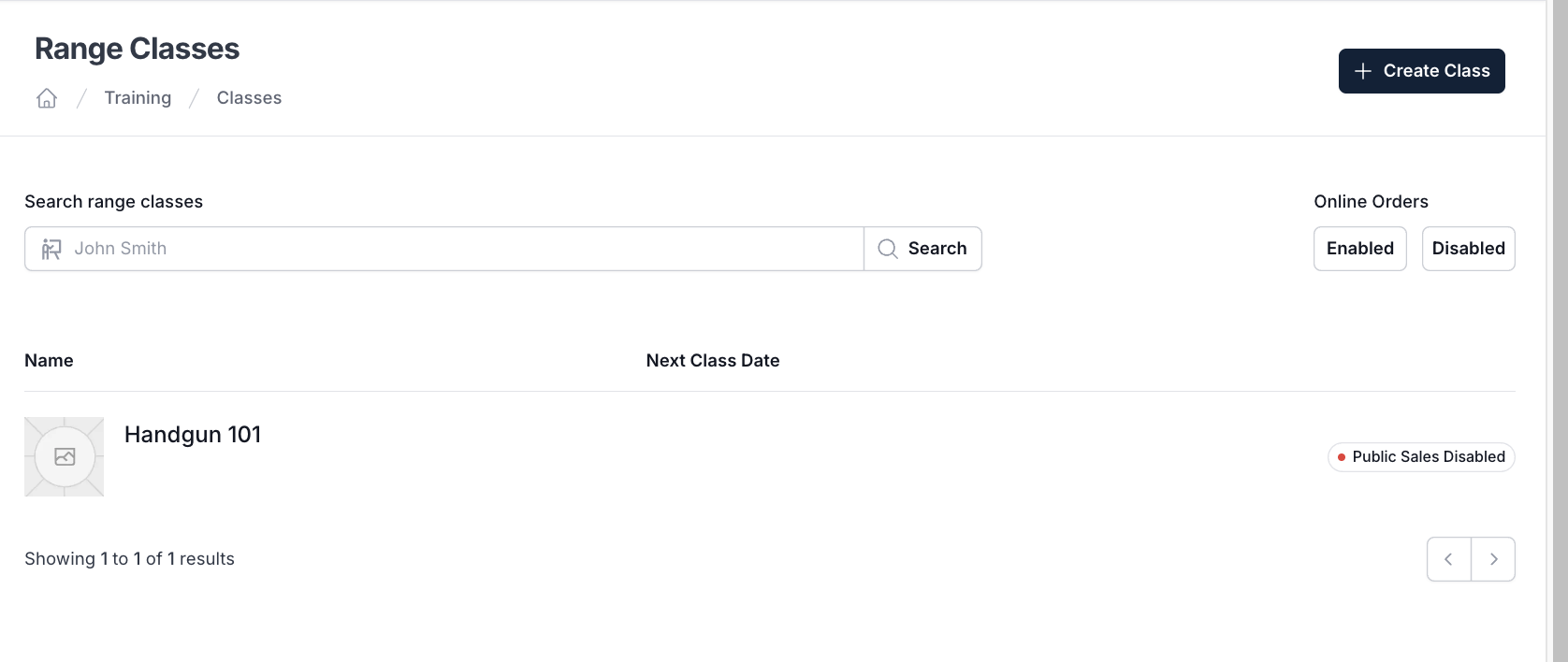
While in "Classes" click on the Class you would like to create a session for
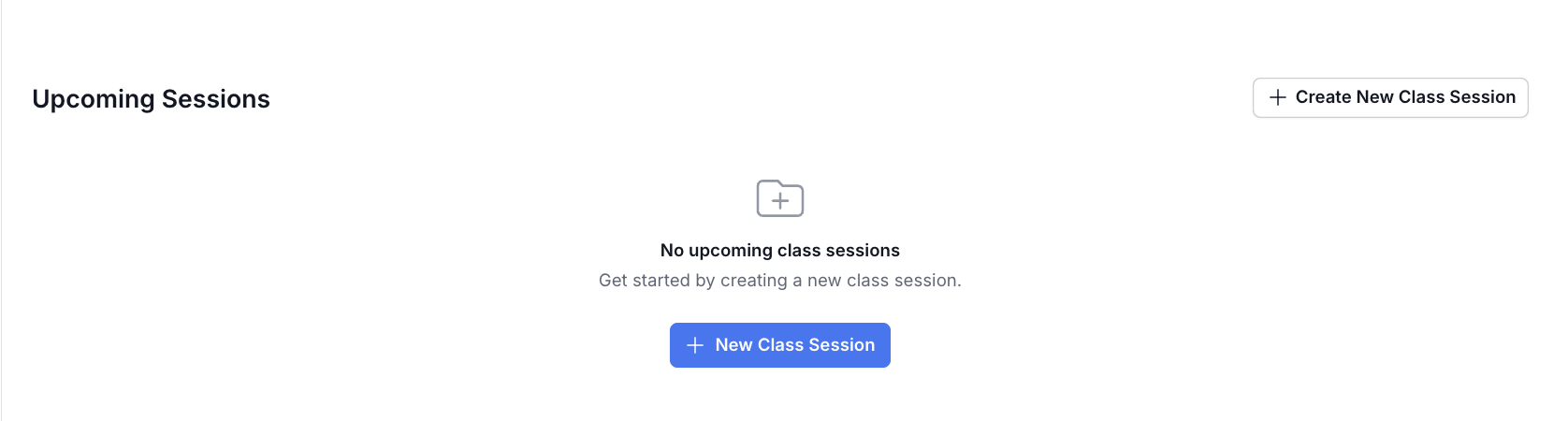
Under "Upcoming Sessions" click “Create New Class Session” or “ New Class Session” button
2. Enter Session Details
Fill out the following fields:
Field | Field Description |
Session Name | A clear name for the class session (e.g., “Handgun 101: Wednesday October 2nd”) |
Alternate Display Name | Optional: Use a simpler, customer-facing name if the internal one is too complex. (e.g. Handgun 101) |
Public Description | Brief overview of what the class covers (Public description of the class) |
Business | Select the location from the drop down (if single location business option is preselected) |
Schedule | Enter the following information for the session:
|
Roster Settings | Enter the following information for the session:
|
Point of Contact | Enter the following for the support point of contact given to the customer after reservation:
|
Class Location | Enter the location of the class session that will be shown publicly pre-purchase on the class information and schedule |
Checkout Options | Select to enable the following at check out:
|
3. Create Class
Click "Create Session" button
