How to Set Up a Range Reservation
Last updated: July 12, 2025
Prerequisites
Before trying to set up a range reservation ensure:
You are logged in as an Administrator or a user with Range Operations permissions.
To add Range Reservations to your RangeWorks services contact Support
You have your bays and ranges set up
Reference: How to Set Up Your Range Bays and Lanes
Steps to Setting Up a Range Reservation
1. Navigate to the Range Page
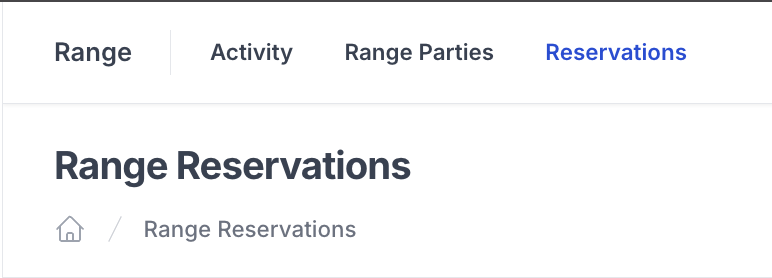
From the Admin Dashboard, go to Range
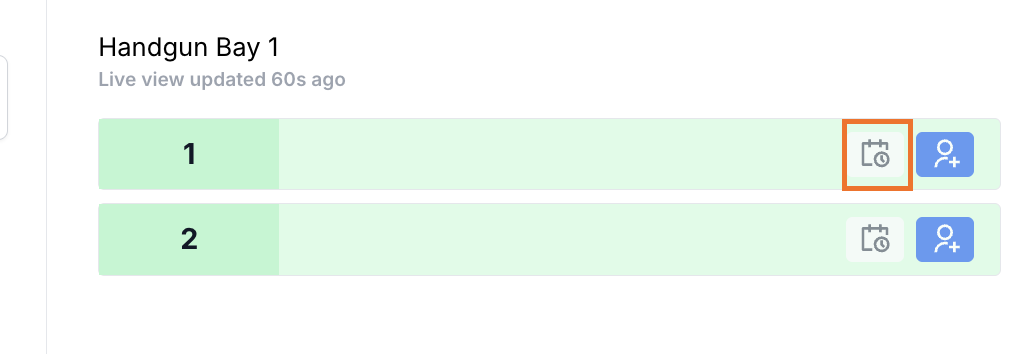
While in "Activity" click the Calendar button

Alternatively, while in "Reservations" click the "Create Reservation" button
2. Enter Range Lane Reservation Details
► If the Customer is a return customer: Use Retail Customer Search to add them to the reservation
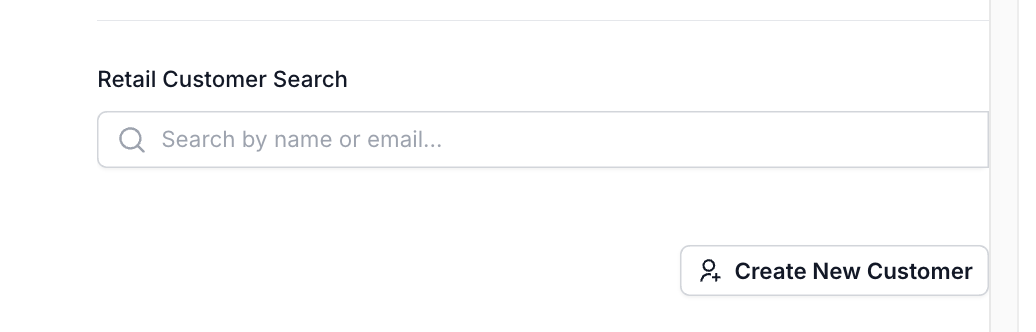
► If the Customer is a new customer: click the "Create New Customer" Button and fill in the following information:
A. First Name
B. Last Name
C. Company Name (if applicable)
D. Gender
E. Date of Birth
F. Notes
G. Email (Click "Add Email" button to add multiple email addresses)
i. Type
ii. Email
iii. Preferred toggle
H. Phone Number (Click "Add Phone Number" button)
i. Type
ii. Email
iii. Preferred toggle
I. Physical Address
i. Street Address
ii. City
iii. State/Region
iv. Postal Code
► Click "Create Customer" Button
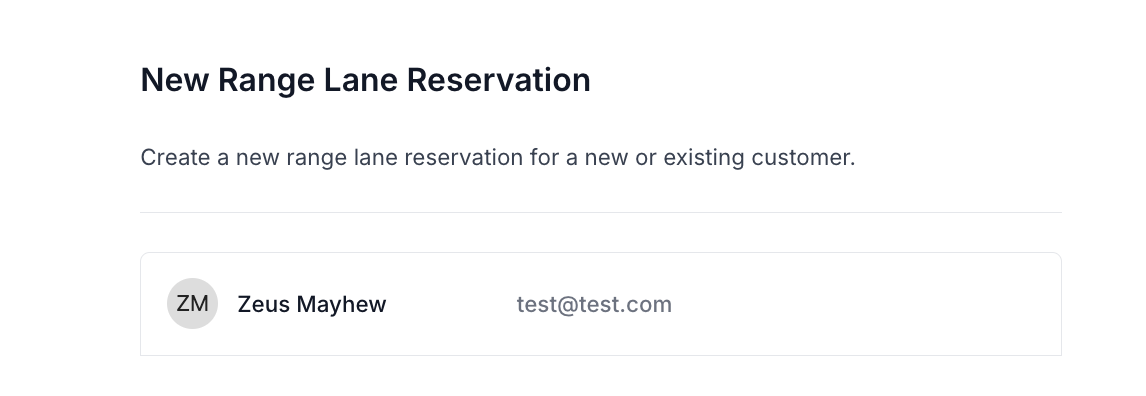
► Once you have a customer created or selected the customer should show like below
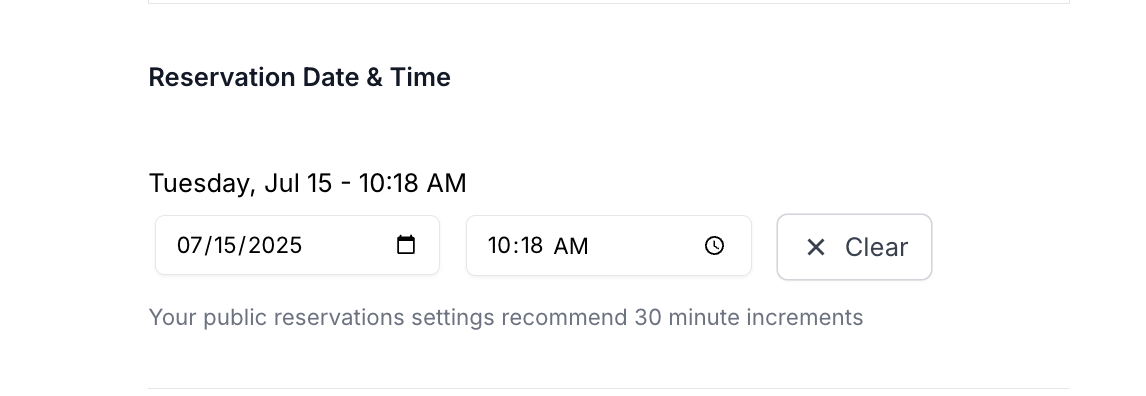
►Fill out the date and time of the reservation
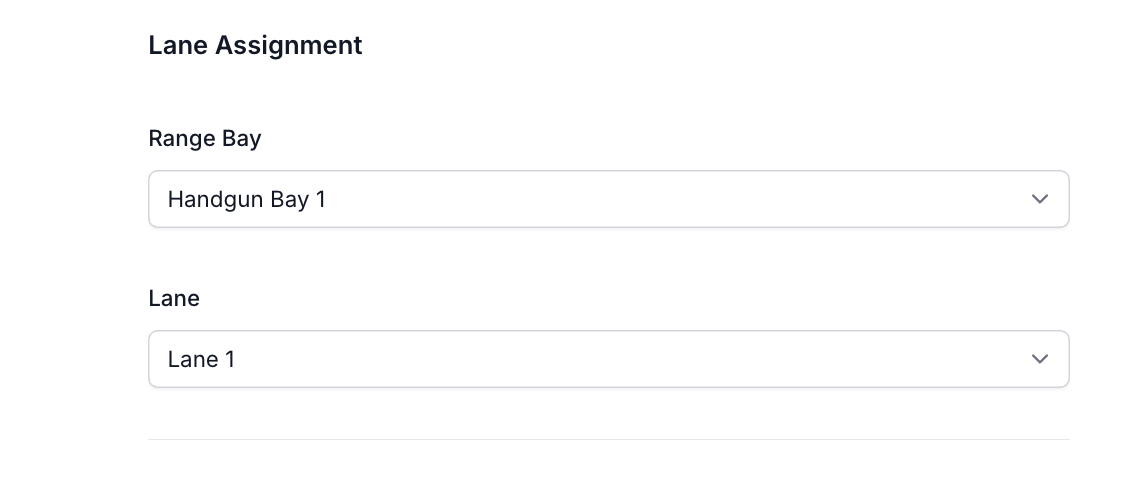
► Fill in the lane assignment information
A) Bay
B) Lane
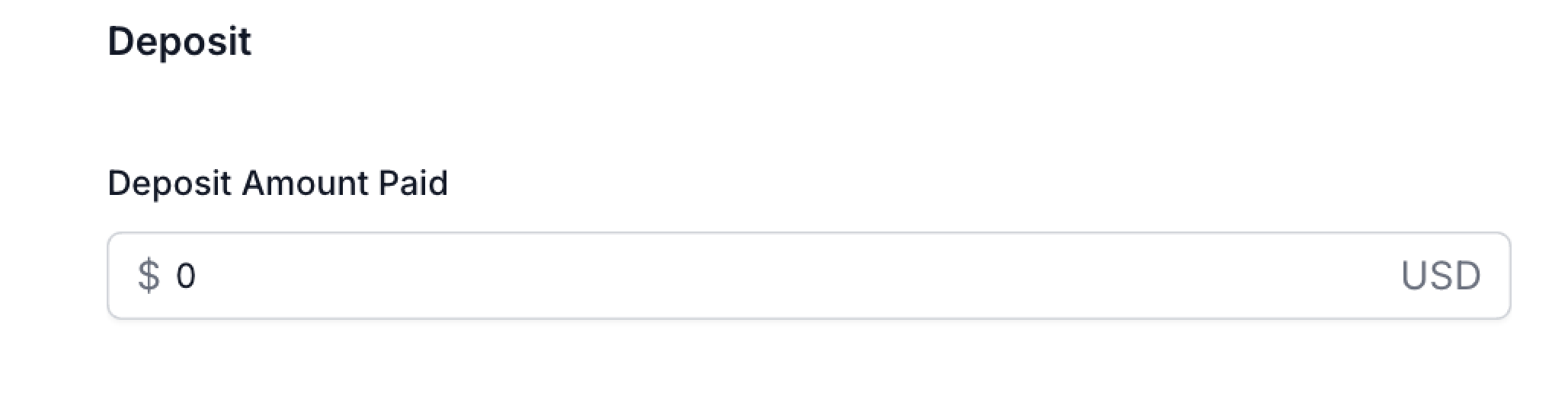
► Fill in the deposit amount (if paid in store), for online reservations pricing is set in business settings (See How to Set Up Your Range Bays and Lanes)
► Click "Create Lane Reservation" button to finish creating the reservation

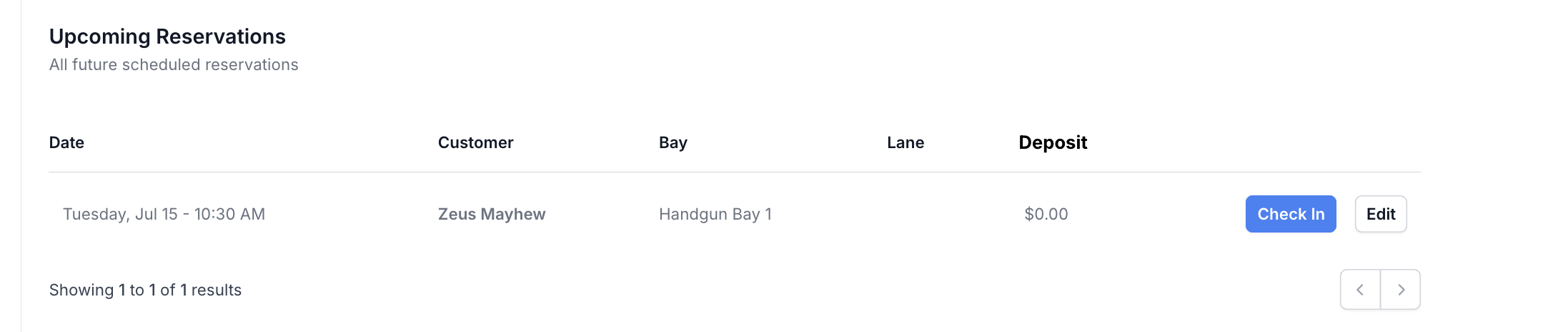
► Upcoming Reservations will display in the following tabs
A. Range --> Reservations