How to Set Up Your Range Bays and Lanes
Last updated: July 7, 2025
Steps to Setting Up Your Range Bays and Lanes
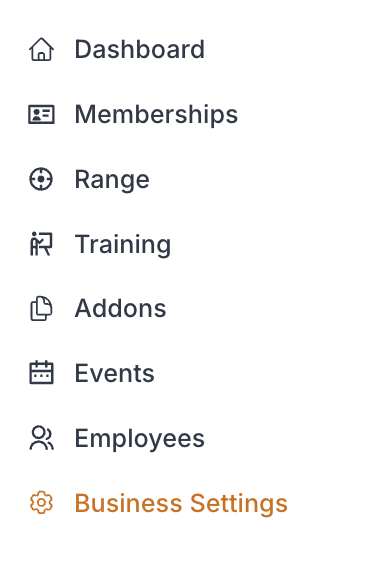
1. Navigate to the Business Settings Page
From the Admin Dashboard, go to Training
While in "Venue" click “Create Venue Space” button.
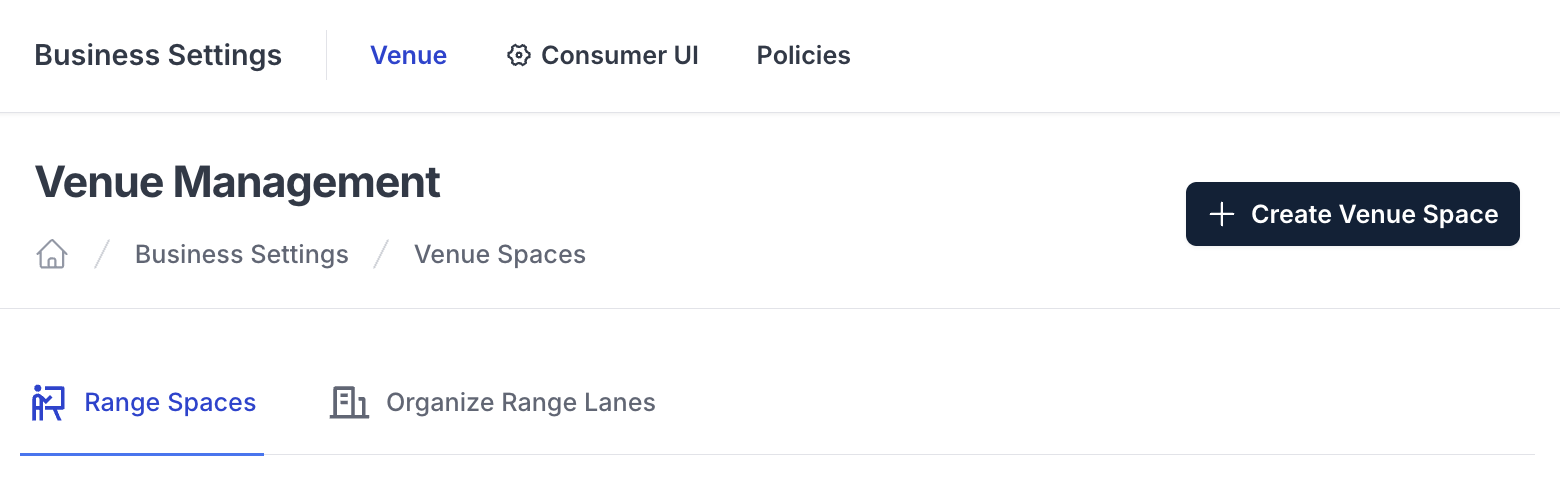
2. Enter Range Space Details
►Fill out the following fields:
Field | Field Description |
Space Name | Name of space (e.g. Handgun Bay, Classroom 1, etc) |
Space Type | Select Range Bay or Classroom |
► Click "Save Changes" button to save updated information
3. Edit Range Bay Information
► Click "Configure Range Bay" button
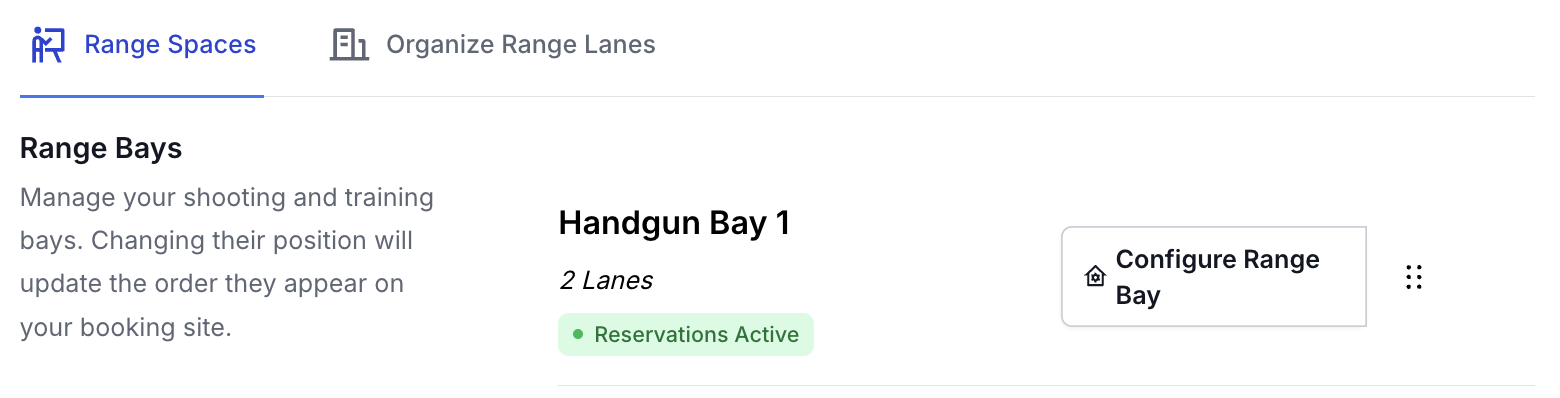
a. Configure Range Bay Tab
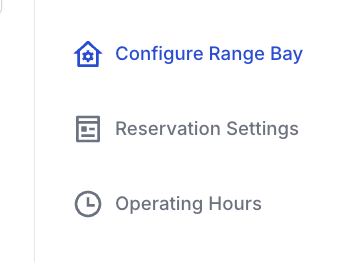
► Enter and edit the following information:
Field | Field Description |
Space Name | Name of space (e.g. Handgun Bay, Classroom 1, etc) |
Public Description | Description of space (e.g. "Our 25 Yard Pistol Bay" or "Large ClassRoom") |
► Click "Save Changes" button to save updated information
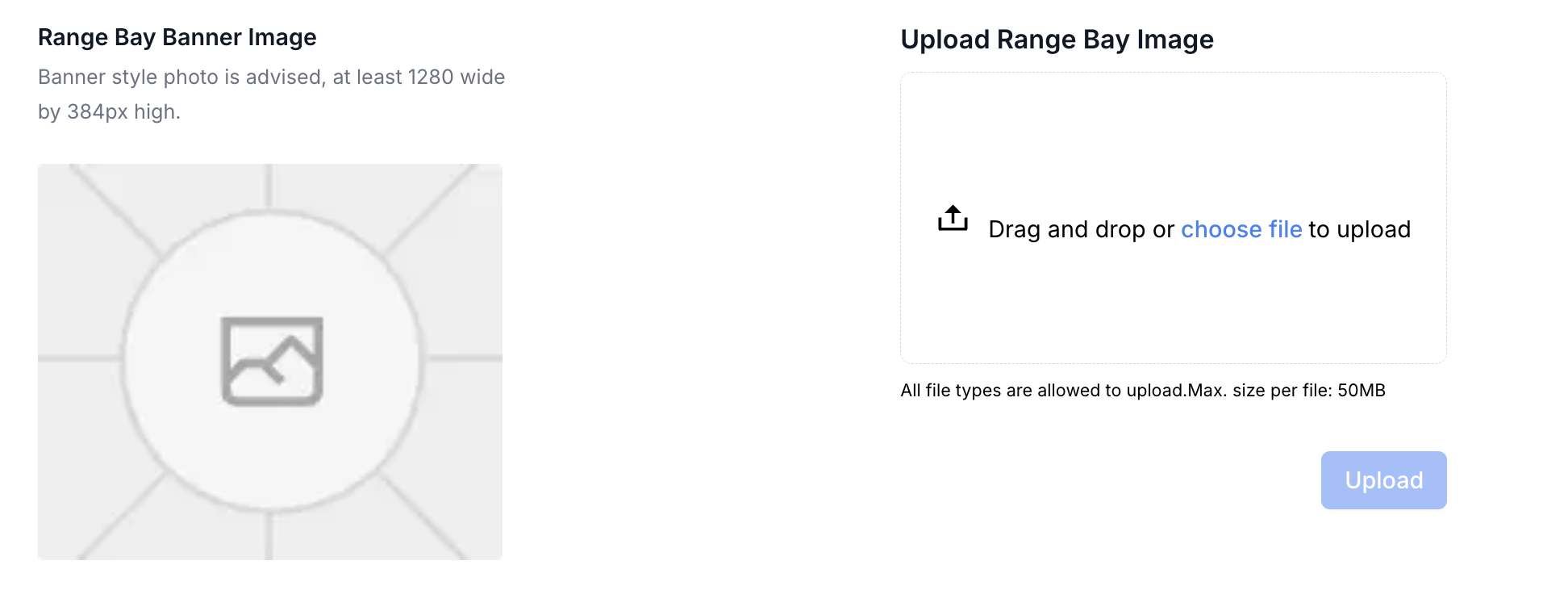
► Range Bay Banner Image: Upload Banner style photo, at least 1280 wide by 384px high. Click upload after selecting file
► Manual Lane Management:
► Click "Add Lane" button to add the appropriate number of lanes to your range bay
► Enter the following information for each lane
Field | Field Description |
Number | Assign lane a number |
Name | Give lane a name |
Reservations Toggle | Check to have reservations allowed on that lane or Uncheck to disable reservations for that lane |
Open Toggle | Check to have that lane open or Uncheck to have the lane closed |
Delete | Allows you to delete a lane |
► Click "Save Changes" button to save updated information
b. Reservation Settings Tab
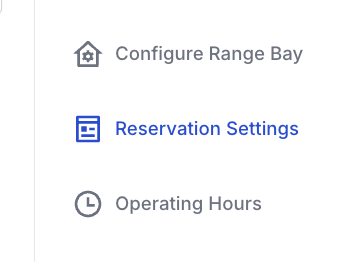
► Reservation Status: Enable or disable reservations for this Range Bay
► Restrictions:
i. Require Active Membership For Range Reservations: This will make booking on this bay members only. You can control which memberships are allowed to book below
ii. Allow lane selection during booking: If disabled, booking will assign the first available lane.
► Reservation Pricing: Bay specific pricing for member and public reservations. This will override global settings.
Field | Field Description |
Public Reservation Cost | Base Reservation Cost or Deposit Specific to this Bay in USD |
Members Reservation Cost | Membership specific range discount will be applied to this number in USD |
► Booking Period Limitations: Maximum number of days out which allows to you limit how far in the future specific types of customers can reserve lanes.
Field | Field Description |
Maximum Days Out: General Public | Specify number of days out the general public can reserve lanes in this bay or leave blank for default or no limit |
Maximum Days Out: Any Member | Specify number of days out members can reserve lanes in this bay or leave blank for default or no limit |
► Click "Save Changes" button to save updated information
► Membership Level Adjustments: Set Membership reservation settings for lanes in this bay
Field | Field Description |
Membership | Select membership type from drop down |
Reservation Cost | Specify cost in USD for that membership type |
Reservations Enabled | Check to have reservations enabled for that membership type Uncheck to have reservations disabled for that membership type |
Maximum Days Out | Specify maximum days out that membership type can reserve lanes in this bay |
Weekdays | Check to have reservations enabled for that membership type on weekdays Uncheck to have reservations disabled for that membership type on weekdays |
Weekends | Check to have reservations enabled for that membership type on weekends Uncheck to have reservations disabled for that membership type on weekends |
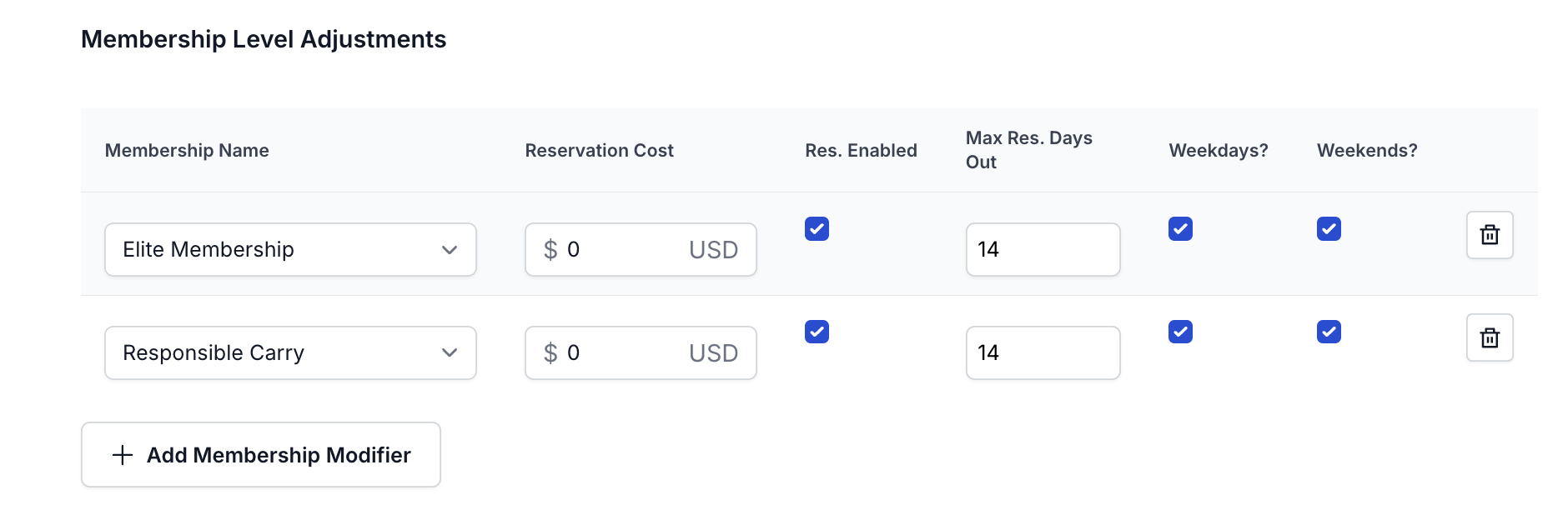
► Click "Add Membership Modifier" button to add other membership types
► Click "Save Changes" button to save updated information
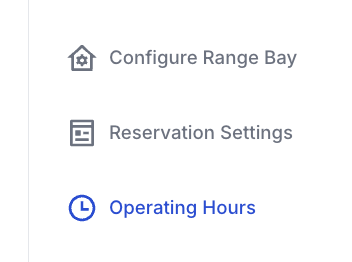
c. Operating Hours Tab
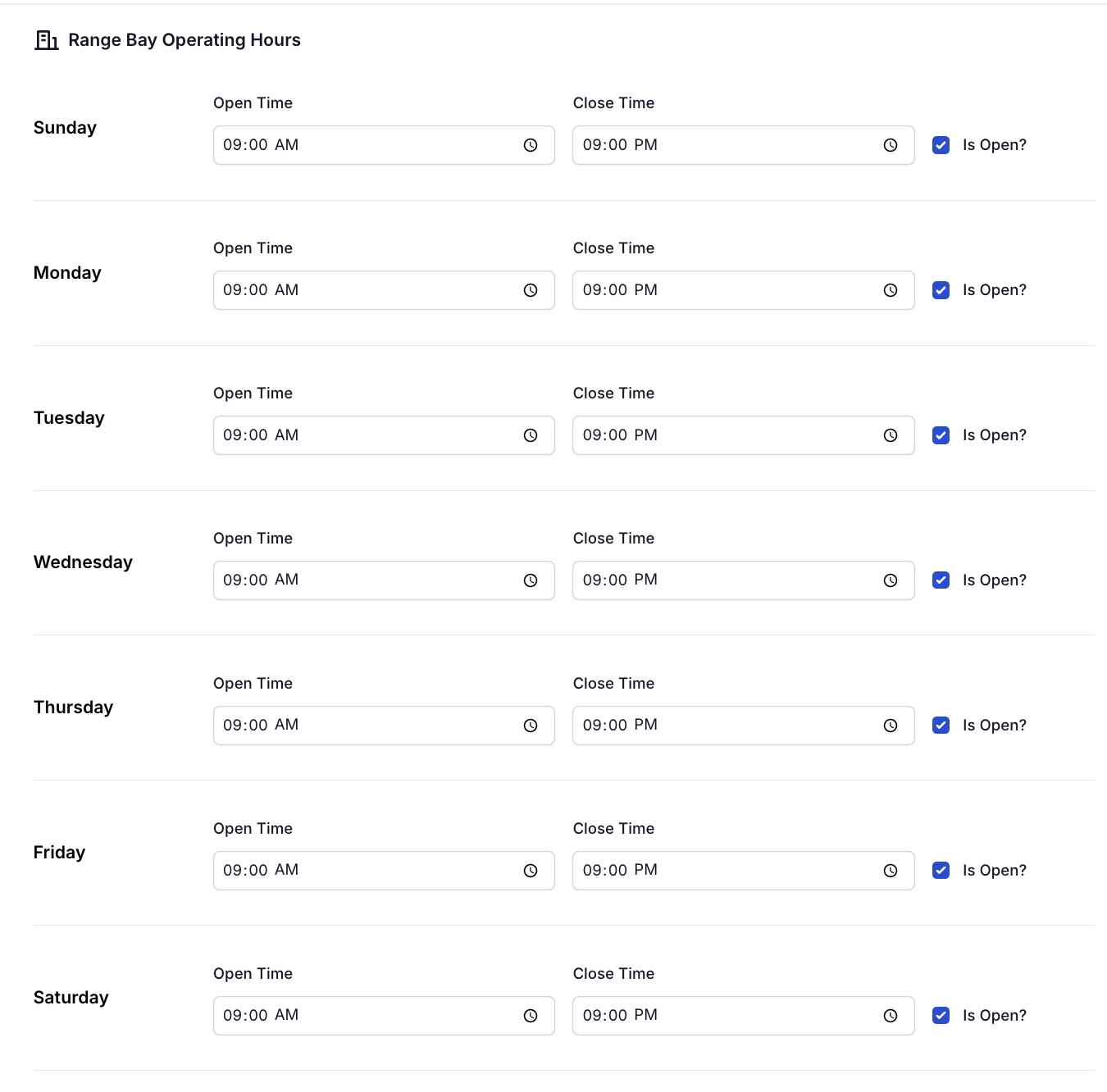
► Range Bay Operating Hours: Set operating hours for the selected range bay for each day of the week
i. Open Time
ii. Close Time
iii. Is Open Toggle
► Click "Save Changes" button to save updated information
NOTE: If you are an AXIS Customer and experiencing problems please contact Support using the chat button in the bottom right corner
or emailing support@rangeworks.com